
Excel Autosave to the Rescue
Excel Autosave periodically saves changes to your spreadsheet so you don’t lose all of your work if your computer crashes or you close an Excel file without saving changes. This feature is enabled by default in Excel 2010 and newer.
Related: 35 Best Excel Keyboard Shortcuts
How often has this happened to you? You’re working on several spreadsheets throughout the day. You’ve been updating one worksheet for several hours and you’ve been checking other spreadsheets for information – opening them as needed – until you have a bunch of Excel files open. Now it’s time to go home.
As you close the first spreadsheet, Excel asks if you want to save changes. You really didn’t make any changes so you click “Don’t Save”. The next spreadsheet prompts you… and your answer is the same. With one eye on the clock, you click one “Don’t Save” message after another including the last file. The one you REALLY should have saved!
Filled with regret, you do some quick mental calculations to determine how many hours you’d have to work to recreate the lost spreadsheet… then you remember something you read on a blog. Excel Autosave has your back!
Excel Autosave Location
To make sure you’re protected, you should examine the current settings for Excel Autosave. Do this now, so you can avoid being stressed out later:
- Select the File tab on the Ribbon.
- Click Options.
The Excel Options dialog box appears. - Select the Save tab.
- In the Save workbooks section, make sure that Save AutoRecover information every 10 minutes and Keep the last autosaved version if I close without saving are both selected then click OK.
How to Recover an Unsaved Excel File
If you close an Excel file that has never been saved, these are the steps you would take to recover the file:
- Say a silent prayer (if you’re so inclined).
- Open Excel.
- Click Open Other Workbooks.
- Scroll all the way to the bottom of the Recent Workbooks list and click Recover Unsaved Workbooks.
- Excel displays a list of unsaved workbooks. Open the most recent file.
- Once Excel opens your workbook, click the Save As button to save the file.
How to Restore Previous Versions of a Saved Excel File
While a file is open, Excel keeps up to five versions of your workbook, according to the AutoRecover interval set in the Excel Options dialog box (see Excel Autosave Location, above). If you close a previously saved workbook but don’t save the most recent changes, only the last Autosave version will be available.
Restore a Previous Version of a File You Are Editing
To restore a previous version of an Excel file you are editing, follow these steps:
- Select the File tab on the Ribbon and verify that Info is selected.
- Under Versions, select the worksheet you’d like to restore.
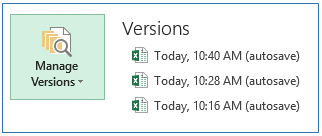
- Click the Restore button.
- Click OK to overwrite the last saved version with the selected version.

How to Recover Unsaved Changes to a Previously Saved Excel File
If you close a previously saved Excel file without saving the most recent changes, you can recover the last Autosaved version by following these steps:
- Select the File tab on the Ribbon and verify that Info is selected.
- Under Versions, select the worksheet that Excel captured when you closed the file without saving.
- Click the Restore button.
- Click OK to overwrite the last saved version with the selected version.
Has This Happened to You?
I hope this article saves you some time and stress. Has your computer crashed while you were using Excel? Were you able to recover your data? Let me know in the comments below!